
Set up custom outcomes with tags and follow-up tasks
Add your own outcome tiles that apply a tag and create a HighLevel task automatically when a rep picks them.
For admins · Updated Sep 23, 2026
All guides
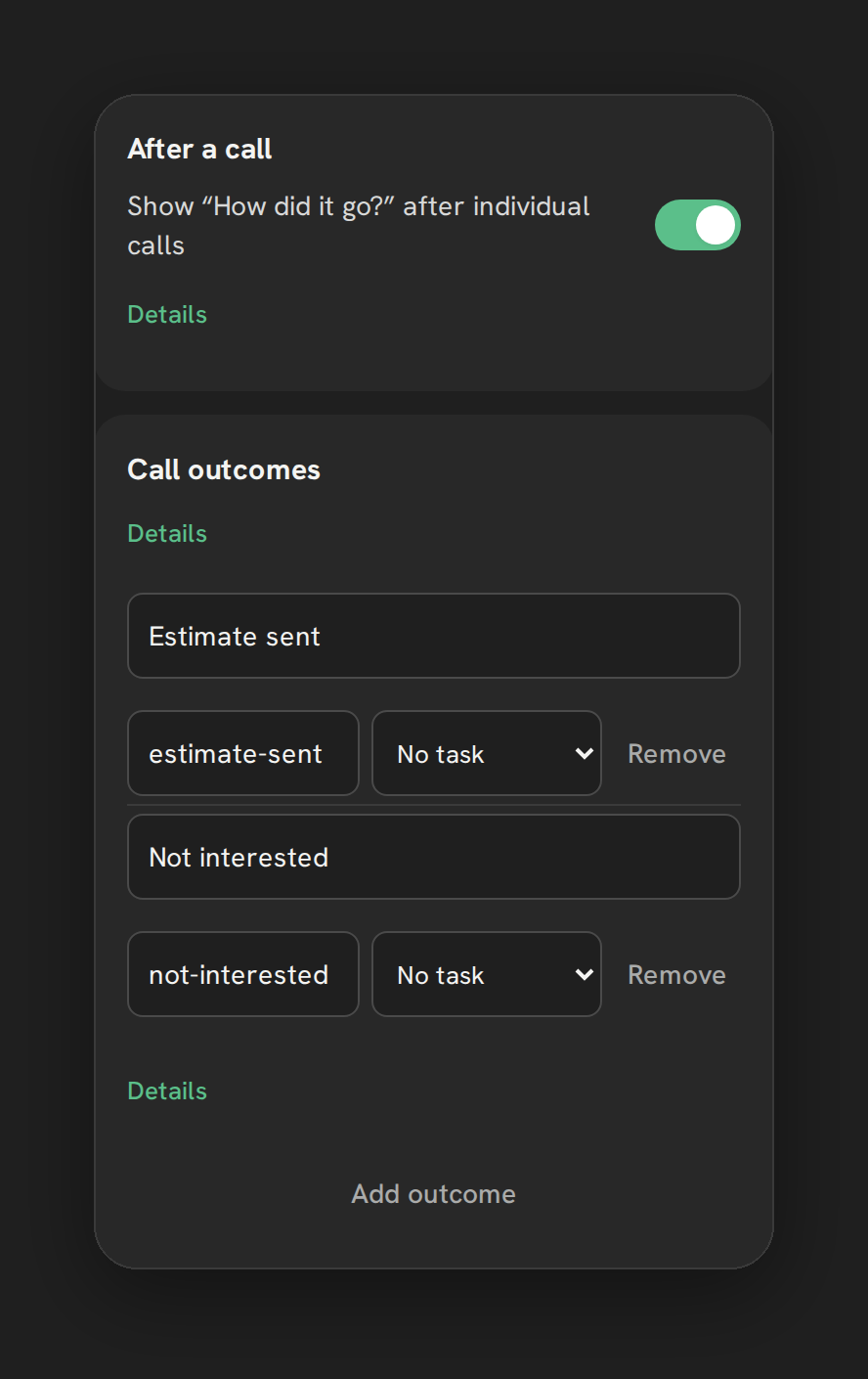
The four built-in outcomes (Connected, Voicemail, No answer, Wrong number) cover the basics. If your team needs something more specific, like “Booked” or “Not interested,” you can add your own. A custom outcome can apply a tag and create a follow-up task the moment a rep picks it.
Where to set it up
Settings → Calls tab → “Call outcomes” card.
What a custom outcome can do
Each custom outcome has:
- A name, up to 40 characters. This is the label shown on the tile.
- An optional tag, up to 40 characters, applied to the contact when a rep picks this outcome.
- An optional follow-up task, with a due date chosen from: No task, Task: today, 1 day, 2 days, 3 days, 1 week, 2 weeks, or 30 days.
When a rep picks a custom outcome, Phone Clover applies the tag (if set), creates the task (if set) and
assigns it to the rep who picked it, and writes a note reading “Outcome: <label>” to the contact.
Limits
Note: You can create up to 8 custom outcomes per sub-account. Plan the list with your team before building it, since there is no way to add a ninth without removing one first.
- Outcome name: 40 characters max.
- Tag: 40 characters max.
- Follow-up task due date: the built-in presets go up to 30 days; the underlying limit is 90 days.
- Custom outcomes appear below the four built-in tiles on the outcome card, in the order you create them.
Known behavior to plan around
Warning: If a rep saves an outcome twice on the same call, a second follow-up task is created. There is no automatic dedupe. Ask reps to save an outcome once per call.
- If you delete a custom outcome later, its label stays visible on calls that were already logged with it. This is intentional, so historical call records do not change retroactively.
- There is no “open a booking link” action built into an outcome. If a booking link is part of your workflow, put the link in the task description or handle it as a separate step after the call.
Example setup
A common pattern for a sales team:
| Outcome name | Tag | Follow-up task |
|---|---|---|
| Booked | booked-appointment | No task |
| Not interested | not-interested | No task |
| Call back later | callback-requested | 3 days |
| Left detailed voicemail | vm-detailed | 1 week |
This keeps the four built-in tiles for the generic cases and adds outcomes your team actually acts on differently.
Troubleshooting
A rep does not see the custom outcome I just added. Have the rep refresh the Phone page. New custom outcomes appear on the outcome card the next time it loads.
The follow-up task was not created. Confirm the outcome had a due date other than “No task” when it was set up. An outcome created with “No task” never creates one, even after you edit it later, unless you edit that specific outcome to add a due date.
I need more than 8 outcomes. Combine similar outcomes, or use the note field on the outcome card for finer detail instead of a new tile for every variation.