
Start a calling list from a tag
Dial every contact with a given tag automatically, one after another, from the Lists tab or the dashboard.
For everyone · Updated Sep 23, 2026
All guides
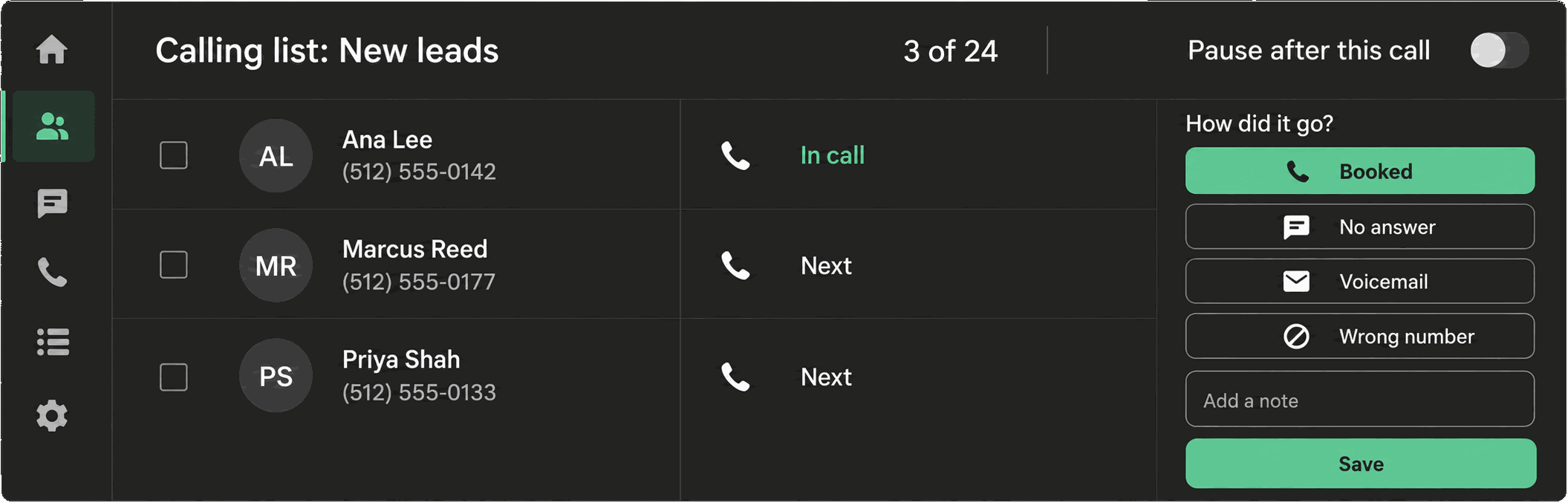
When you need to call everyone who carries a certain tag, tagging them in HighLevel already does half the work. Phone Clover can take that tag and dial every matching contact for you, one after another, without you opening each contact by hand.
Where to start it
There are two places to start a tag list:
- Phone page → Lists tab. Type a tag and click Start.
- Dashboard → “Call a tag” card. The same feature, started from the reporting side. See Call a tag from the dashboard.
Step by step
- Open the Lists tab on the Phone page.
- Type the tag name in the field (placeholder text reads
Tag, e.g. new-lead). Use the exact tag as it appears in HighLevel. - Click Start.
- Phone Clover looks up every contact carrying that tag and begins dialing them in order.
Once the list is running, the dial-list bar at the bottom of the phone shows where you are: who is being called, how many are left, and a countdown before the next call. You can pause, resume, or stop the list at any point, and it picks back up where it left off if you reload the page.
What happens before each call
Phone Clover does not just dial straight down the tag list. Every contact is checked again right before the call goes out. See DND and calling-hours checks for exactly what gets checked and what happens to a contact that fails a check.
After each call connects, you record what happened before the list moves to the next contact. See Post-call outcomes.
Limits
Note: Only the first 100 contacts matching the tag are loaded into the list. If the tag has more than 100 contacts, Phone Clover still tells you the full count, so you know more are waiting.
- The 100-contact cap applies per list start. If a tag has 140 contacts, start the list, work through the first 100, then add a temporary second tag (or remove the tag from contacts you have already called) and start it again for the rest.
- This is a manual-pace dialer. Phone Clover does not use predictive dialing and does not try to detect whether a call was answered by a machine. Each call is dialed only when you are ready for the next one, and you set the pace in Settings → Sequence.
- Calling-hours and do-not-call checks apply to every contact on a tag list the same way they apply to a selected-contacts list.
Why use a tag instead of selecting contacts
Tags are useful when the list needs to be reusable or built by a workflow, for example a tag applied automatically by a HighLevel automation when a lead reaches a certain stage. If you are working from a filtered view of the Contacts grid instead, ticking contacts directly is usually faster for a one-off list. See Start a calling list from selected contacts.
Troubleshooting
Nothing happens after I click Start. Check the tag spelling. Phone Clover matches the tag exactly as it exists in HighLevel; a typo returns zero contacts.
The list is smaller than I expected. Remember the 100-contact cap. Check the total count Phone Clover reports alongside the list, which reflects every contact carrying the tag, not just the ones loaded.
A contact I expected to be called was skipped. DND, calling hours, and a stale phone number can all cause a skip. The dial-list bar tells you how many were skipped; see DND and calling-hours checks for the exact reasons.