
The Phone Clover browser softphone, overview
How calling works in Phone Clover, the floating widget on every GHL page and the full Phone page, both in your desktop browser.
For everyone · Updated Sep 23, 2026
All guides
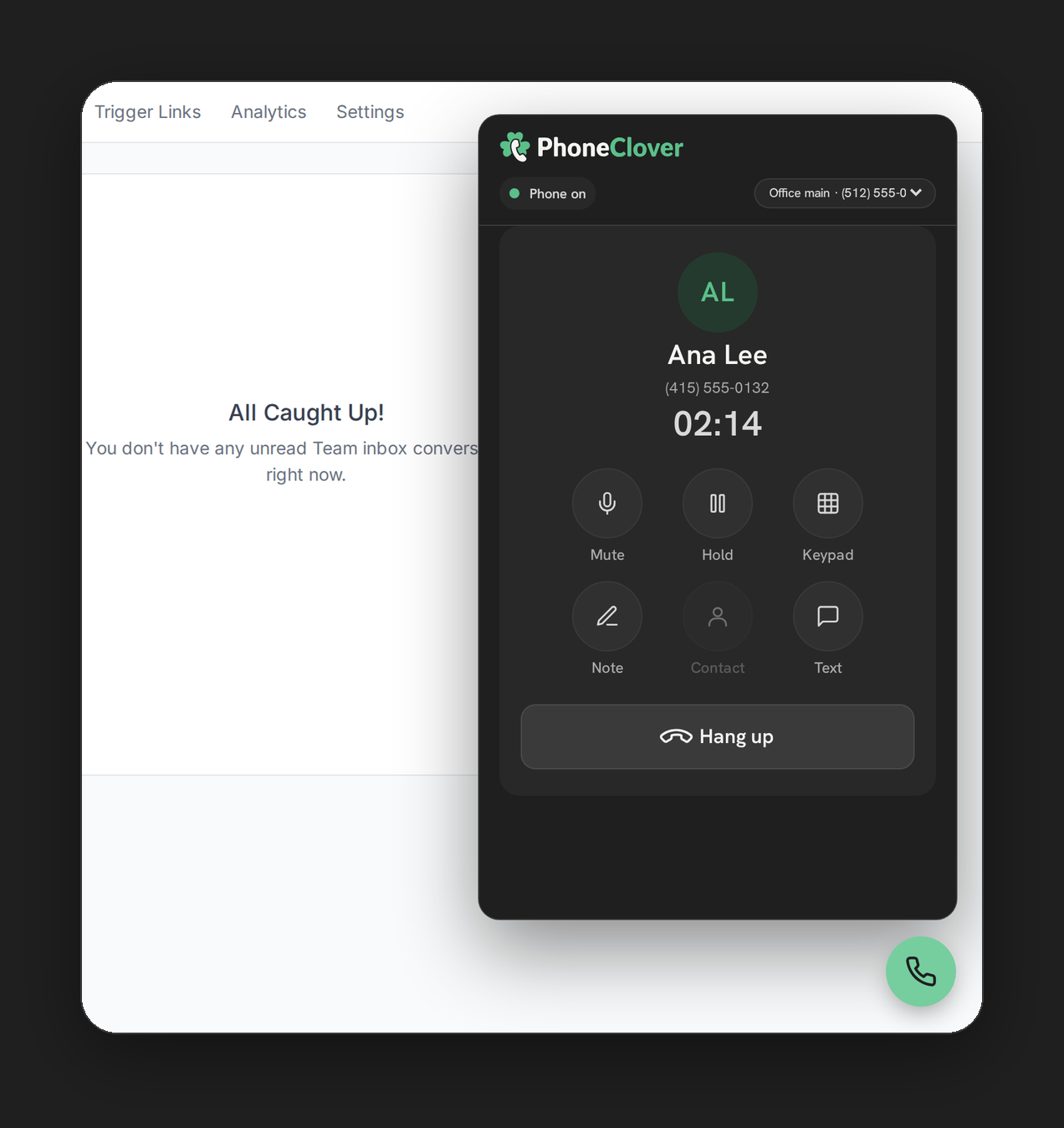
Phone Clover puts calling directly in your browser, inside HighLevel. There is nothing to install on your computer beyond the Phone Clover app itself, and no separate phone app to open. You place and answer calls from the same tab you are already working in.
There are two places you do this: the floating widget, which follows you around GHL, and the full Phone page, which is a dedicated screen with its own tab bar and, on a wide window, a call dashboard next to it.
The floating widget
The widget is a small round bubble that stays on screen while you work anywhere in HighLevel, not just on the Phone tab. Click it and a panel opens for dialing, answering, and running a call. Click it again, or the close button inside the panel, to put it away. A red badge on the bubble shows how many calls you have missed, up to “9+.”
You can drag the bubble to a different spot on the screen. Double-click it to snap it back to its default position. The widget is the only surface that holds the live call connection, so if you close the browser tab entirely mid-call, the call ends.
Note: The widget currently opens only on the HighLevel sub-accounts Phone Clover has been turned on for. If you do not see the bubble, check with your admin that your sub-account has calling enabled.
The full Phone page
The Phone page is a standalone screen inside GHL with four tabs along the bottom: Recents, Contacts, Keypad, and Lists. See Recents, Keypad, and Lists on the Phone page for what each tab does.
On a wide browser window (roughly 1000 pixels or more), the Phone page adds a second column with your call dashboard, call log, and team stats next to the phone itself, and the bottom tab bar is replaced by that two-column layout. On a narrower window, you get the tab bar instead.
Two ways to start a call
Besides dialing from the Keypad tab, you can start a call from wherever you already see a contact:
- Click-to-call on a phone icon in the Contacts grid or an Opportunities/pipeline card. See Click-to-call in the Contacts grid and Click-to-call on Opportunities.
All three open the same floating widget panel to place the call, so the controls, caller card, and outcome screen behave the same no matter how the call started.
What Phone Clover calling is, and is not
Phone Clover calling runs in your desktop browser over the internet, not as a phone-network call from a mobile app. That means:
- It works in any modern desktop browser where you have HighLevel open, with microphone permission granted.
- There is no native mobile calling app. Texting works from the GHL mobile app because SMS travels through GHL’s own Conversations, but placing or answering a Phone Clover voice call from a phone requires a mobile browser tab, not a dedicated app.
- Incoming calls can be forwarded to your cell phone if you want a ring to reach you off your desktop. See Forward calls to your mobile phone.
Warning: If you need to be reachable by phone while away from your computer, set up forwarding rather than expecting a native mobile calling experience. Phone Clover’s voice calling is desktop browser only, by design.
Before your first call
Your browser will ask for microphone permission the first time you try to answer or place a call. Allow it, or incoming calls will ring silently on your end. If you run into this, see Fix microphone permission problems.
You will also see a desktop notification when a call rings in, as long as you have granted browser notification permission and the GHL tab is not the one currently focused. See Turn on desktop notifications.