
Call a tag from the dashboard
Start the same tag-based calling list from the dashboard's "Call a tag" card, without switching to the Lists tab.
For everyone · Updated Sep 23, 2026
All guides
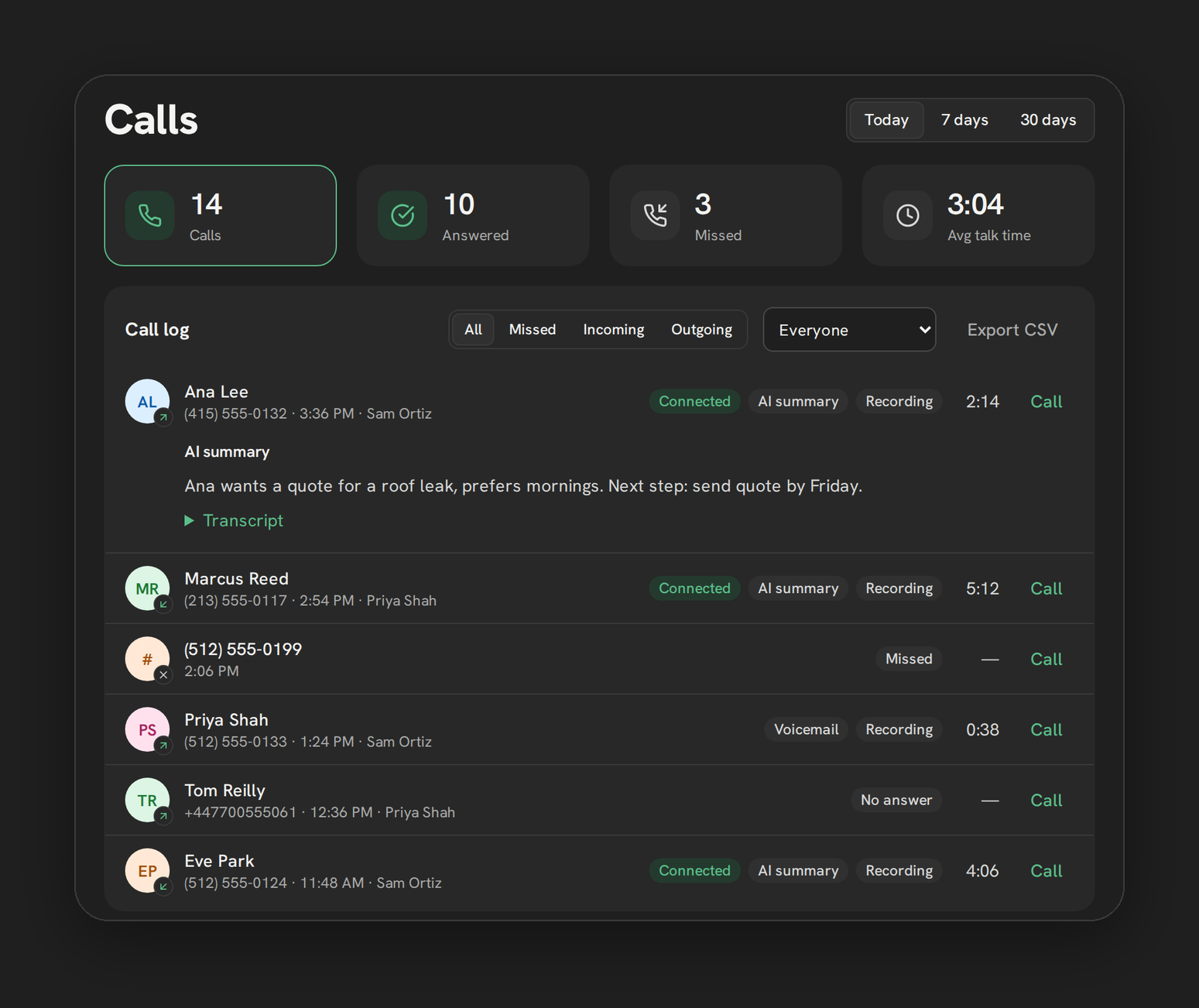
Starting a tag-based calling list does not require leaving the dashboard. The “Call a tag” card puts the same feature you would otherwise reach through the Phone page’s Lists tab right next to your call reporting.
Where it is
The “Call a tag” card is on the dashboard, alongside the stat tiles, call log, and the other reporting cards.
How it works
Type a tag into the field and click Start. Phone Clover looks up every contact carrying that tag and begins dialing them in order, exactly the same way as starting a list from the Phone page’s Lists tab. This is not a separate feature with different behavior, it is the same tag-list mechanism with a second entry point.
Note: Everything documented for tag lists applies here too, including the 100-contact cap per start and the DND and calling-hours checks re-run before every call. See Start a calling list from a tag for the full detail.
Why use this instead of the Lists tab
The dashboard version is convenient when you are already looking at reporting and decide, in the moment, that a tag needs to be worked, for example after noticing a tag with a high miss rate in the call log. You do not need to switch to the Phone page first.
If you are starting your day planning to work a list, the Lists tab on the Phone page puts you straight into the dial-list bar and the phone controls, which may be a more natural starting point. Both lead to the same running list.
What happens after you click Start
Once the list starts, the dial-list bar takes over at the bottom of the phone, showing progress, pause and stop controls, and the countdown to the next call, same as any other calling list. The dashboard itself keeps showing your stats and log; it does not switch views to follow the list.
Limits
- Same 100-contact cap per list start as the Lists tab version.
- Same DND, calling-hours, and outcome requirements apply. See DND and calling-hours checks and Post-call outcomes.
- This card does not show a running list’s progress itself. Watch the dial-list bar on the phone for that.
Troubleshooting
I started a list from the dashboard and now cannot find its progress. Look at the dial-list bar at the bottom of the phone, not the dashboard card. The card only starts the list.
The tag field will not accept my tag. Double check the spelling matches the tag exactly as it exists in HighLevel. There is no autocomplete or suggestion list on this field.
I already have a list running and want to start a new tag. Finish, pause, or stop the current list first. Starting a second list while one is running is not supported.