
How to Use Telnyx Numbers in GoHighLevel
Telnyx GoHighLevel 7 min read
A practical guide to Telnyx GoHighLevel setup: adopting numbers, registering them for SMS, browser calling, and what lands on the contact timeline.
- Best for
- Agencies and sub-account teams that already have, or want, their own Telnyx account connected into GHL's Conversations, contact timeline, and workflows.
- Not for
- Teams needing native mobile voice calling, in-order routing, warm transfer, three-way calling, or a multi-sub-account agency dashboard.
- The difference
- Numbers stay in your own Telnyx account rather than a bundled carrier plan, so Telnyx bills you directly for usage. We only charge for the software.
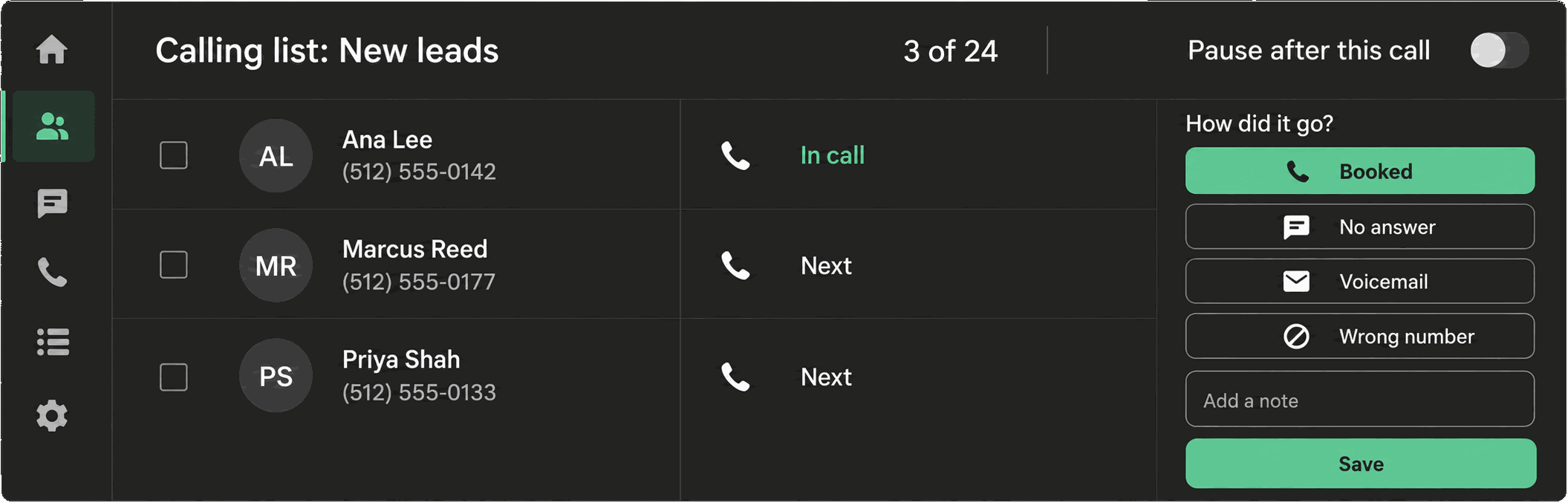
If you already have Telnyx numbers, or you want the control that comes with owning your own carrier account, connecting Telnyx to GoHighLevel is the actual work behind that idea. This guide walks through what “Telnyx GoHighLevel” setup really involves inside Phone Clover: getting numbers into the sub-account, registering them for texting, placing calls from the browser, and seeing what shows up on the contact record afterward.
Why agencies want Telnyx inside GHL
HighLevel’s built-in phone option, LC Phone, is a white-labeled Twilio account. That works fine for teams who never think about the carrier layer. But once an agency runs enough sub-accounts, questions start coming up: why did this text fail, why does this number look spammy to carriers, why can’t we buy a number in a country GHL doesn’t stock, why is the SMS rate what it is.
Telnyx gives you a separate account you can inspect, with its own number inventory, its own messaging and voice pricing, and APIs for things like number health and hosted SMS. The catch is that owning a Telnyx account doesn’t put any of that inside HighLevel by itself. Phone Clover is the layer that does the connecting: it registers Telnyx as the SMS provider for a sub-account, gives reps a browser softphone, and writes everything back to the contact timeline the way a native phone app would.
Getting Telnyx numbers into the sub-account
There are two ways numbers end up available inside Phone Clover.
Adopt a number you already own. If you already purchased numbers directly in Telnyx’s own
portal, connect your own Telnyx account first.
The number then shows up in the Settings → Numbers picker as available to bring in. Phone Clover confirms
before it moves anything: “Move <number> to this account? Voice and texting for it will route
here.”
Buy a new number. From the same Numbers tab, “Get a number” opens a search by country and type (local, mobile, toll-free, national, shared cost), with price and capability chips shown before you buy. Some countries need extra paperwork before the purchase can complete, and the app collects that up front rather than after you’ve already paid.
Note: International purchases are rate-limited to 5 per day per sub-account. If you’re provisioning a large batch, spread it over a few days.
See Set up your first number for the full walkthrough, and Buy or connect an international number if you’re shopping outside the US.
What native SMS provider registration actually means
“Native SMS provider” is the setting that decides which carrier HighLevel’s Conversations panel sends through. Registering Telnyx as the sub-account’s SMS provider means texts sent from Conversations, from a workflow’s Send SMS step, from bulk SMS, and from the GHL mobile app all travel over your Telnyx numbers instead of GHL’s default.
This is not automatic. An admin has to turn it on deliberately, and until that happens, the sub-account keeps using whichever provider it had before. Once it’s registered, the workflow for reps doesn’t change. They still text from the same Conversations thread, still use the same Send SMS workflow action. The only difference is which numbers the messages actually leave from, and whose delivery data you can see when something goes wrong.
Read the full setup steps in Set up Telnyx as your native SMS provider, and check Send SMS from Conversations for what reps see day to day.
How browser calling works
Voice in Phone Clover is a desktop browser experience, not a native mobile app. Two surfaces give reps access to it:
- A floating softphone that stays available on any HighLevel page, not just a dedicated phone tab. It’s draggable, shows a missed-call badge, and is the only surface that actually carries the live call connection.
- A full Phone page with an iOS-style tab bar: Recents, Contacts, Keypad, Lists.
Calls can start from a contact’s header, from a phone icon anywhere in the Contacts grid, or from an
Opportunities card. Before the call connects (or while it rings), a caller card shows the contact’s
name, up to five tags, DND status, and the newest note. Once the opportunities.readonly scope is
granted, it also shows the open opportunity’s pipeline stage.
Warning: There’s no native mobile calling. If a rep needs to take calls away from a desk, the honest workaround is forwarding calls to a mobile number and relying on native GHL SMS in the mobile app for texting on the go.
For the mechanics of placing and answering a call, see Browser softphone overview and Click-to-call in the Contacts grid, and the full feature page at /product/browser-softphone.
What logs back to the contact timeline
The point of running Telnyx through Phone Clover instead of a bare Telnyx dashboard is that none of the activity stays siloed. After a call ends:
- The call record, including direction and duration, is logged to the contact.
- A recording is attached, if recording is turned on for that call direction.
- The rep picks a post-call outcome (Connected, Voicemail, No answer, Wrong number, or a custom outcome an admin defined), which can apply a tag and create a follow-up task.
- If AI Notes is turned on (included in Pro and Agency plans), a transcript and summary get written as a note on the same contact.
Texts sent through the registered Telnyx number land in the same Conversations thread reps already use, so there’s no separate “Telnyx inbox” to check.
See Log outcomes, tags, and tasks after a call for exactly what that wrap-up screen looks like.
If AI Notes is turned on for a sub-account, the same call also gets a transcript and a short summary written as a note, so a manager reviewing activity later doesn’t have to replay every recording to know what happened. AI Notes is included in Pro and Agency plans, but it still stays off until we turn on the entitlement for that sub-account, so don’t expect it to appear automatically the moment calling is set up.
Desktop notifications and presence, so calls don’t get missed
Two smaller pieces round out the browser calling experience. Desktop notifications ask for browser permission the first time a rep clicks the phone bubble, since that’s the only moment Chrome allows the prompt. Once granted, a notification only shows when the GHL tab is hidden or unfocused, so reps working in another tab still catch a ring. Clicking the notification focuses the tab and opens the phone automatically.
Availability works alongside this. Reps toggle Available or Away from the top bar of either the widget or the full Phone page, and the app posts a presence heartbeat every 30 seconds while connected. An inbound ring-all only reaches reps who’ve been seen in the last 90 seconds and aren’t marked Away, so a rep who closed their laptop without going Away won’t silently absorb a ring they never see.
Note: Notifications only fire for ringing calls today. There’s no separate notification for a missed call or an incoming text once the call notification has closed.
A realistic first week
If you’re setting this up for the first time, a reasonable order is: adopt or buy your first number, confirm calls place and receive correctly from the browser softphone, then decide whether to register Telnyx as the native SMS provider right away or phase it in. Teams that already run active SMS automations through GHL’s default provider sometimes wait a few days to register, so they can watch a handful of test conversations first. There’s no requirement to do everything on day one. Voice and SMS registration are independent switches, and you can turn calling on well before texting, or the other way around, depending on which workflow is under more pressure.
When Phone Clover is a fit, and when it isn’t
Phone Clover fits agencies and sub-account teams that already have (or want) their own Telnyx account and want that carrier relationship connected into HighLevel’s actual workflow: Conversations, contact timeline, Opportunities, workflows. It’s a good match if you care about number health, want hosted SMS on a number you’re not ready to port, or want desktop browser calling with caller context and logged outcomes.
It’s not the right fit if you need native mobile voice calling, in-order call routing, warm transfer or three-way calling, or a multi-sub-account agency dashboard that rolls up several sub-accounts into one view. None of those exist today. If your team’s calling workflow depends on one of them, LC Phone or another vendor may serve you better until those gaps close. The same goes for E911 emergency addressing, which isn’t provisioned on any number today; don’t move a sub-account’s primary line onto Telnyx through Phone Clover if emergency dialing support is a requirement you can’t work around. If SMS is your main concern and voice is secondary, start with hosted SMS on your existing number rather than a full Telnyx buildout: see Text-enable an existing number without porting.