
GHL Browser Softphone vs Mobile Calling - Which Workflow Fits Your Team
GHL browser softphone 7 min read
A honest look at GHL browser softphone calling versus mobile, what each one actually does today, and how to combine them so nothing falls through.
- Best for
- Teams whose reps mostly call from a desk or laptop and want calls, notes, and outcomes landing on the same screen as the rest of their CRM work.
- Not for
- A team that needs reps taking calls primarily from their phones, or click-to-call outside of GHL's own pages.
- The difference
- Voice calling is desktop browser only; texting rides natively in the GHL mobile app, with mobile call forwarding covering reps away from their desk.
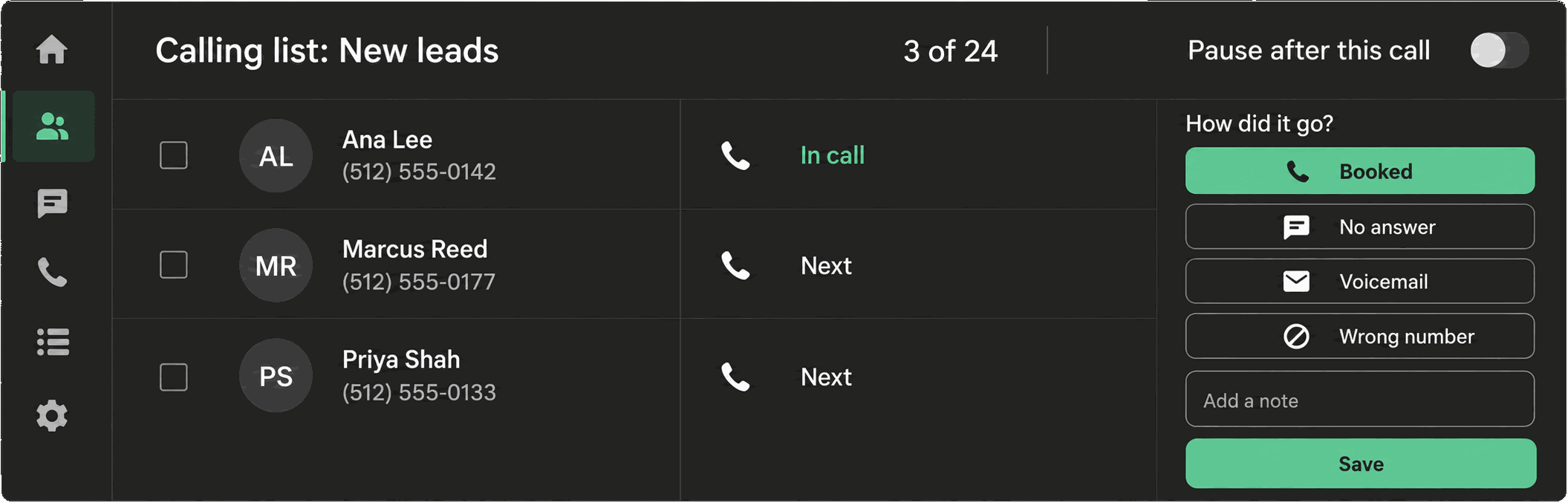
If your team is deciding how reps should actually answer the phone inside HighLevel, the honest answer starts with a boundary: GHL browser softphone calling is a desktop experience, and mobile calling from a phone’s browser is not part of it. This article lays out what browser calling enables, why the desktop-first design exists, what still works fine from a phone (texting, mostly), and how to put together a workflow that does not leave reps stranded when they step away from their desk.
What browser calling enables
Phone Clover’s voice layer runs as a WebRTC softphone inside the browser, in two places:
- A floating, draggable widget that stays available on every GHL page, not just the dedicated Phone tab, so a rep can answer a ring or place a call without leaving whatever contact or opportunity they were working on.
- A full Phone page with Recents, Contacts, Keypad, and Lists tabs, styled like a familiar mobile phone app but running in the browser, plus a live dashboard alongside it on wider screens.
From either surface, a rep can click to call directly from the phone icon in the Contacts grid, or from a card in Opportunities. Once a call connects, the same in-call controls apply everywhere: mute, hold, keypad, a note panel, a contact lookup, and a text panel, with hang up and answer buttons that adapt to whether the call is still ringing.
Why desktop workflows matter
Desktop-first is not an accident. Most of the CRM work a rep does around a call, pulling up notes, checking an opportunity’s stage, logging an outcome, happens on the same screen as the call itself. Keeping voice calling inside the browser means the caller card, the in-call note, and the post-call outcome tiles are all one click away instead of split across a phone app and a separate desktop CRM tab.
It also means every call, recording, outcome, and follow-up task writes back to the GHL contact timeline the same way regardless of which surface the rep used to place the call, since it is the same underlying app either way.
Note: GHL’s own developer platform blocks every outside phone app, including Phone Clover, from placing or receiving calls inside GHL’s native Conversations call surface. That is why calling lives in a floating widget or a dedicated Phone page instead of GHL’s built-in call button. It is a platform-wide constraint, not something specific to any one vendor.
What SMS can still do in the GHL mobile app
Texting is a different story from calling. Phone Clover can register itself as the HighLevel sub-account’s SMS provider, and once that is set up, texting rides through wherever GHL normally sends SMS, including the GHL mobile app. A rep on their phone can:
- Read and reply to SMS conversations from Conversations, on Telnyx-backed numbers.
- Have workflow Send SMS steps and bulk SMS campaigns go out over the same numbers.
- Do all of this without needing Phone Clover’s own interface open at all, since it rides inside GHL’s native mobile experience.
That is the practical answer for reps who need to work from their phones: texting travels with them natively, voice calling does not.
Where browser voice is limited
Being direct about the gap matters more than glossing over it. Browser calling in Phone Clover does not have a mobile app, native or otherwise, and there is no supported way to make or take a Phone Clover call from a phone’s mobile browser today. A rep stepping away from their desk has two real options, not a third hidden one:
- Forward calls to their mobile number. Set this from Settings, under the Calls tab, in the “Missed calls” card. The Telnyx number always stays the caller ID on the forwarded call; it is never swapped for the rep’s personal number.
- Let the call fall through to voicemail. If forwarding is off, an unanswered call can go to voicemail (off by default, toggled in the same card), which gets logged to GHL as a voicemail-type call entry.
There is also no Chrome extension today for click-to-call on arbitrary web pages outside of GHL’s own Contacts, Opportunities, and Conversations surfaces. If your workflow depends on dialing from somewhere else in the browser, that is not built yet.
A side-by-side comparison
| Browser softphone (desktop) | Mobile (GHL app) | |
|---|---|---|
| Voice calling | Full softphone: floating widget, Phone page, click-to-call, in-call controls | Not supported; no native mobile calling app |
| SMS | Works, same as desktop | Works, rides as a native GHL Conversation Provider |
| Caller card, notes, outcomes | Full experience | Not applicable, since calling is not available |
| Missed calls | Route through the widget or Phone page | Handled via forwarding to the rep’s mobile number |
| Recordings and AI summaries | Available on the dashboard | Available on the dashboard, viewed from a mobile browser |
The pattern is consistent: anything that depends on an active call only exists on desktop. Anything that is really a messaging or record-review task works fine from a phone.
What a typical day looks like for a field-heavy team
Consider a service business where reps split time between a desk and job sites. A workable split looks like this:
- At the desk (browser): reps take inbound calls through the floating widget while working contacts and opportunities, log outcomes after each call, and start calling lists from tags when working a batch of leads.
- On the road (mobile): calls forward to each rep’s cell phone, with the business number still showing as caller ID, so customers keep calling the same number regardless of who ends up answering. Reps text customers from the GHL mobile app for anything that does not need a live call, quote follow-ups, appointment reminders, quick questions.
- Back at the desk: reps or a manager review the day’s calls, recordings, and outcomes on the dashboard, and anything the mobile-forwarded calls missed shows up on the to-call-back list.
Nothing in that flow requires a mobile calling app. It requires forwarding set up correctly and a team habit of using the GHL mobile app for texting instead of trying to text from a personal phone number that is not connected to the CRM at all.
Choosing the right workflow
A workflow that actually holds together usually looks like this: reps work calls from the browser softphone while at their desk, where the caller card, notes, and outcomes are one click away. When a rep is away from a desk, forward their number to their mobile phone so calls still reach them, with the business number preserved as caller ID. And for texting specifically, lean on the GHL mobile app rather than trying to force voice calling to work from a phone, since texting is the piece that was actually built for mobile.
Trying to make browser calling behave like a native mobile dialer will end in frustration. Splitting the two, desktop for voice, mobile app for SMS and forwarded calls, is the workflow that matches what is actually built.
Setting up forwarding correctly
Since mobile forwarding is the real answer for reps away from their desk, it is worth getting the setup right:
- Open Settings > Calls > Missed calls.
- Enter the rep’s mobile number in the “Forward calls to” field.
- Confirm the change when prompted.
- Test it: call the business number from a phone that is not logged into the browser softphone, and confirm it rings the mobile number with the business number showing as caller ID, not the rep’s personal number.
Clearing the forward number later prompts a confirmation, since it is a real change in how callers
reach you: “Stop forwarding calls from <number>? Callers will hear voicemail or ringing instead.”
If voicemail is also off at that point, an unanswered call outside business hours will fall through
to a spoken greeting and hang up instead.
Notifications while working from the browser
One more piece worth knowing if reps split time between the softphone and other browser tabs: desktop notifications alert a rep to a ringing call even when the GHL tab is not in focus. The first click on the phone bubble is what triggers Chrome’s permission prompt, since that is the only moment the browser allows it. Once granted, a notification shows the caller’s name if known, or a formatted number if not, and clicking it brings the tab into focus and opens the call. It closes automatically once the call is answered, declined, or ends. This does not extend to missed calls or incoming texts; only a ringing call triggers a notification today.
When Phone Clover fits, and when it does not
Phone Clover’s browser softphone fits teams whose reps mostly work from a desk or laptop during calling hours, and who want calls, notes, and outcomes to land in the same place their CRM work already happens. Combined with mobile forwarding and native mobile SMS, it covers a team that is occasionally away from their desk too.
It does not fit a team that needs reps taking calls primarily from their phones throughout the day, since there is no native mobile calling app, and it will not fit a workflow that depends on click-to-call outside of GHL’s own pages, since that extension does not exist yet.
Related reading: Browser softphone overview, Send SMS from the GHL mobile app, Forward calls to your mobile phone, and the browser softphone product page.