
The problem
Copying a phone number out of a contact record and typing it into a dial pad is a small friction, but it adds up across a full day of outbound calling, and it’s an easy place for a typo to send a call to the wrong number entirely. Reps working a pipeline board or a contacts list want to call the person in front of them without a detour.
A rep working through dozens of contacts or opportunities in a session shouldn’t have to open each record, find the number, copy it, switch to a dial pad, and paste it, just to place a call. That extra handling also slows down the moments that matter most, like calling a hot lead back quickly after they fill out a form, where every extra step is a chance for the rep to get pulled away before the call actually happens.
Click-to-call removes that detour. Wherever GHL already shows a phone icon, clicking it starts the call.
How it works in HighLevel
Phone Clover’s widget script watches two places in GHL for a click. In the Contacts grid or a contact’s detail page, the widget intercepts clicks on GHL’s phone-call icon elements and on any tel link, wherever those appear in a /contacts route. On Opportunities, the widget recognizes the phone-icon glyph GHL renders on a pipeline card and treats a click on it the same way.
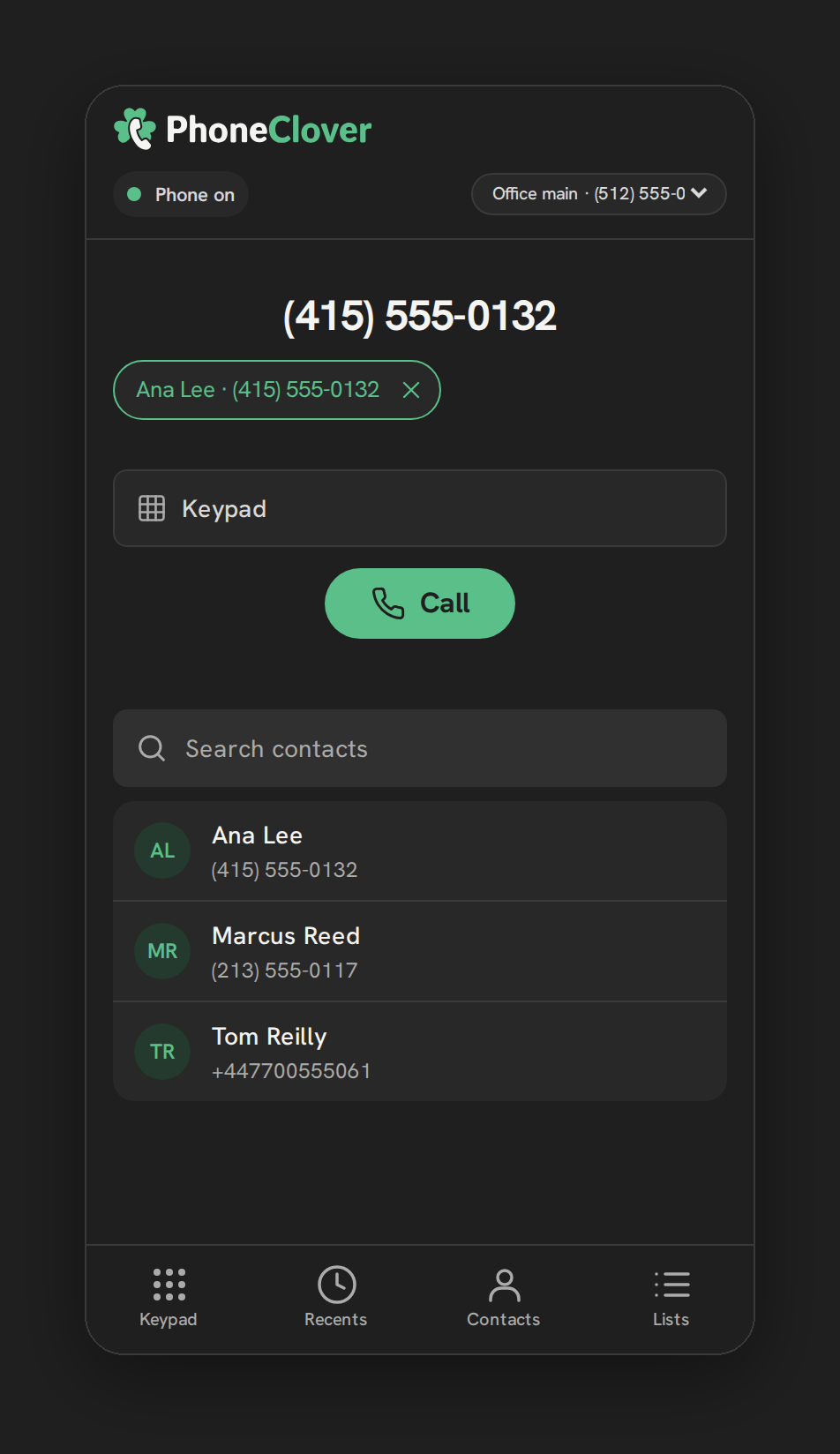
In every case, before the call is placed, Phone Clover checks the number and the contact’s do-not-call status server-side, with a 10-second timeout, then opens the floating softphone and places the call. From there, it behaves exactly like any other call: the caller card, in-call controls, and the post-call outcome all apply.
Every option explained
| Setting | Where | What it does |
|---|---|---|
| Contacts grid click-to-call | Phone icons and tel links inside /contacts routes |
Checks the number and DND status, then opens the softphone and dials |
| Opportunities click-to-call | Phone icon on pipeline cards | Same check-and-dial behavior, triggered from a pipeline card instead of a contact row |
What runs on Telnyx
Once the DND and number check passes, the call itself runs over the same Telnyx WebRTC path used everywhere else in Phone Clover: the floating softphone opens a connection to Telnyx, which carries the audio to the number that was clicked. Telnyx also supplies the call metadata Phone Clover uses afterward to write the call, any recording, and the outcome back to the contact’s timeline.
Who uses it
Reps working through contacts or a pipeline board are the main users, since click-to-call saves them from copying a number into a dial pad by hand. It’s available to every rep the same way, there’s no separate admin-only version of click-to-call; admins use it exactly like anyone else when they’re the ones placing the call.
What to expect
Click-to-call is desktop browser calling, the same limitation as the rest of Phone Clover’s voice features, so it isn’t available inside the GHL mobile app. Because a DND and number check runs before every call, there can be a short pause between the click and the softphone opening, that’s the check completing rather than a delay in the dial itself. And click-to-call only recognizes GHL’s own phone icon and tel-link patterns on a contact’s page, the Contacts grid and Opportunities specifically, not a number typed into a custom field or a note elsewhere in GHL.
If a number fails the DND or eligibility check, the call simply doesn’t start, and the rep should check the contact’s DND status directly in GHL rather than assume the click itself failed. As with every other calling surface in Phone Clover, there’s no warm transfer once the call connects, so click-to-call is best thought of as a faster way to start a normal one-on-one call, not a way to loop in a second rep mid-conversation.